Add Users and manage your team
Add managers to your organization, choose which email notifications they receive, and remove people who no longer need access.
Add users and manage your team
Team members (managers) can sign in to your organization dashboard to help run campaigns, review Members and Payments, and publish Posts. Only people you add here get that access.
Add a team member
Open Team
In the left sidebar under Your Organization, click Team.
Click New
Click New. Enter the person’s name and email.
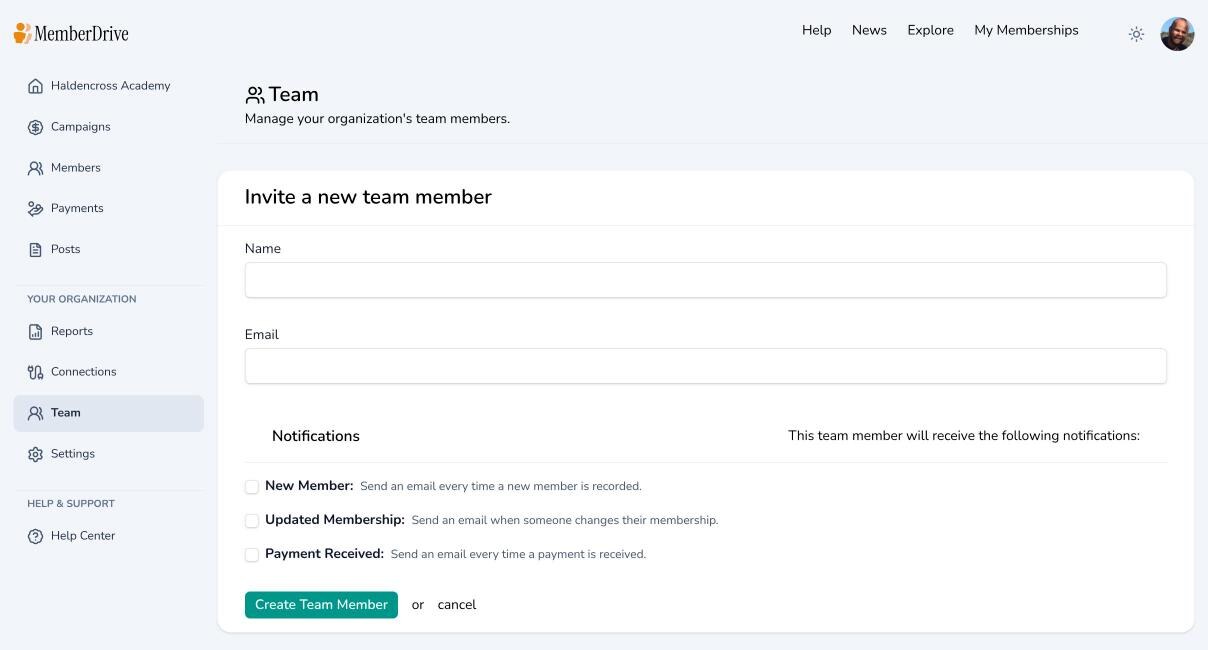
Choose notifications
Under Notifications, choose what this person should receive by email:
- New Member — when a new member is recorded
- Updated Membership — when someone changes their membership
- Payment Received — when a payment is received
Save the team member when you are done. They can sign in with that email using password, Google or Facebook, or an emailed login code. See Login to MemberDrive.
Remove a team member
On the Team list, click Remove next to the person. You cannot remove yourself.
If someone needs different notification settings, open their team record and update the checkboxes instead of removing them.
Subscribe to receive our content right to your inbox.