Bitcoin Donations
Accept peer-to-peer Bitcoin donations directly to your organization's wallet, with no financial institution in between. How to connect your wallet.
Getting Started with Bitcoin
What is Bitcoin? Bitcoin is a decentralized digital currency that is based on a technology called blockchain. Bitcoin is a peer-to-peer currency, which means that there is no middleman or intermediary. This makes it a very secure and anonymous way to send and receive money.
Why accept Bitcoin donations? Bitcoin donations are a great way to support your organization because they are very secure and private. Bitcoin transactions also settle quickly and are paid directly to your organization, without going through a financial institution. Fees are paid to the network by the donor. MemberDrive does not charge any additional fees for Bitcoin donations.
This guide assumes you have a basic understanding of Bitcoin and how to use a wallet. If you are new to Bitcoin, a good place to start is Bitcoin 101 by Swan Bitcoin.
We recommend creating a brand new wallet for your campaign, even if your organization already has a wallet. MemberDrive's Bitcoin connection will use your wallet's Xpub public key to derive receive addresses. Each donation will be received to a different receive address sequentially, never using the same address twice. Using a new wallet will ensure that addresses aren't accidentally reused, enhancing your privacy and security, as well as that of your donors.
Connect your Bitcoin wallet
Setting up Bitcoin donations for your organization is very simple, and just involves a few steps. If you have any questions, don't hesitate to reach out to us for help.
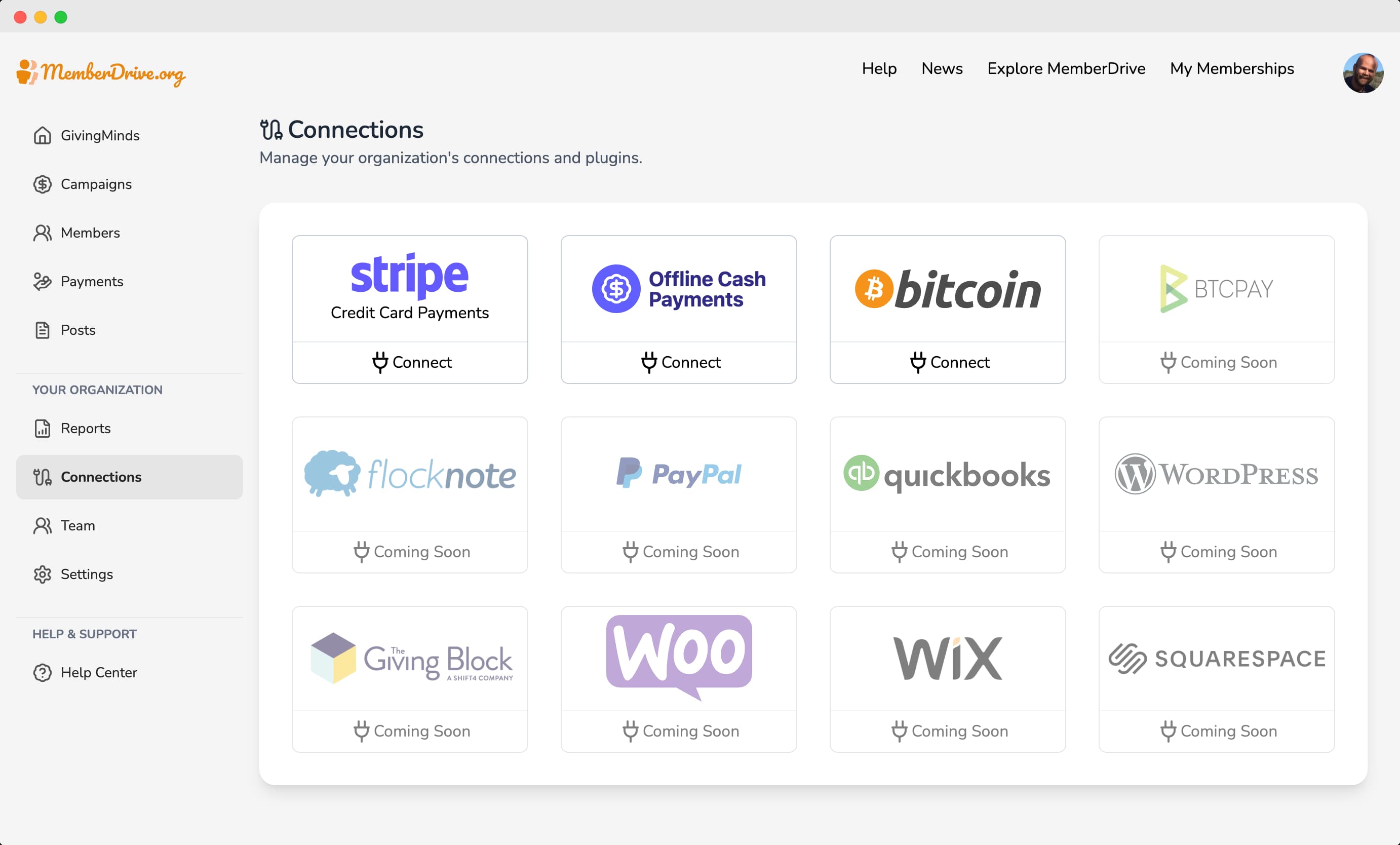
Navigate to the Connections Dashboard
To begin, navigate to the Connections page in your MemberDrive Dashboard. This is where you'll manage all your payment connections, including Bitcoin.
Click the Bitcoin connection
Once you're on the Connections page, locate the Bitcoin icon. This icon represents the Bitcoin connection you'll be setting up.
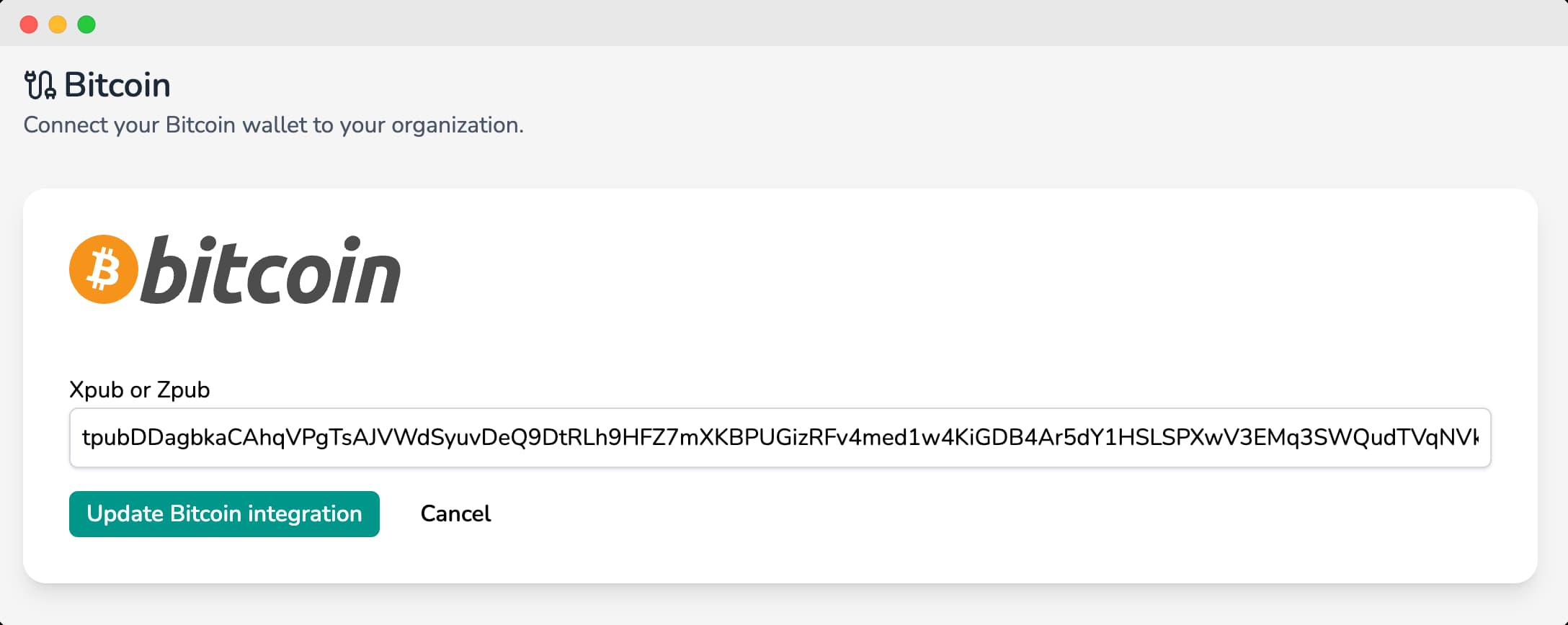
Paste your Xpub
Paste your Xpub or Zpub value into the Xpub/Zpub
field. Then click Create Bitcoin connection
.
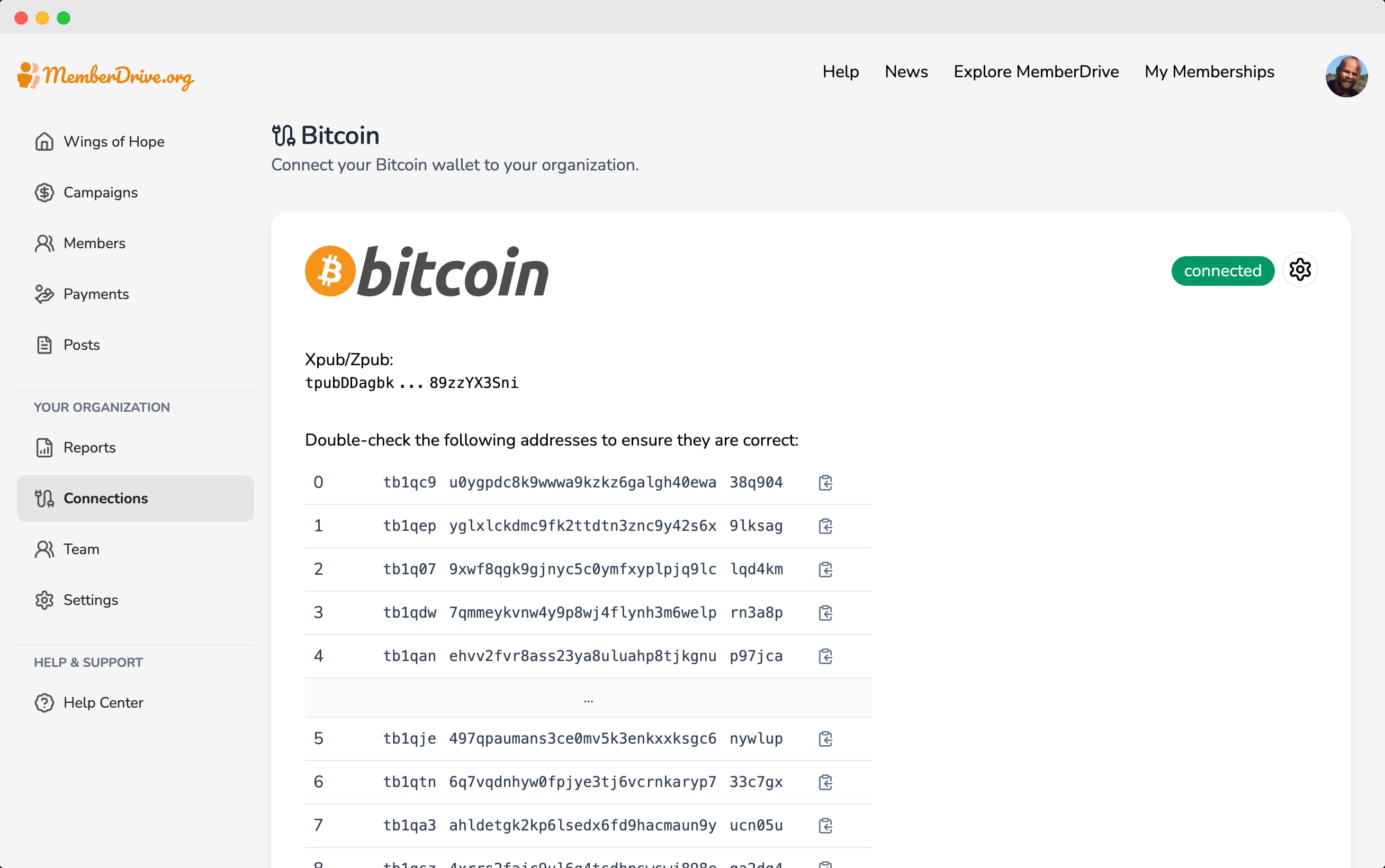
Double-check your receive address
Once you've created the connection, you'll see your receive address. These are the first few addresses where your donors will send their donations. Double-check the addresses with your wallet software to ensure they match.
Test your Bitcoin connection
Let's check out your campaign's Bitcoin donation option.
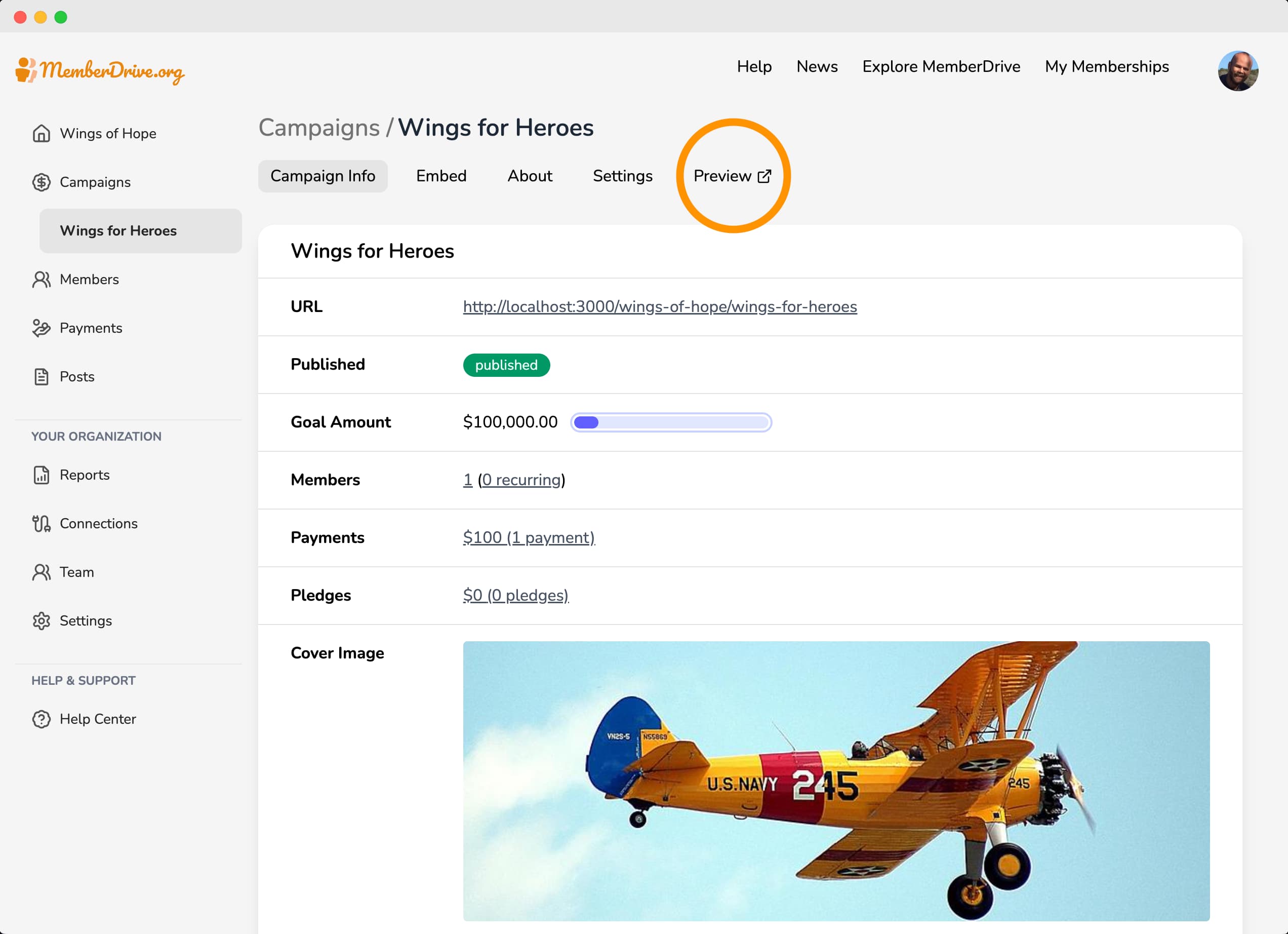
Preview your campaign
To preview your campaign, click Campaigns
in the left-hand navigation. Then click the campaign you want to preview, and click Preview
to open your campaign in a new tab.
Send a test donation
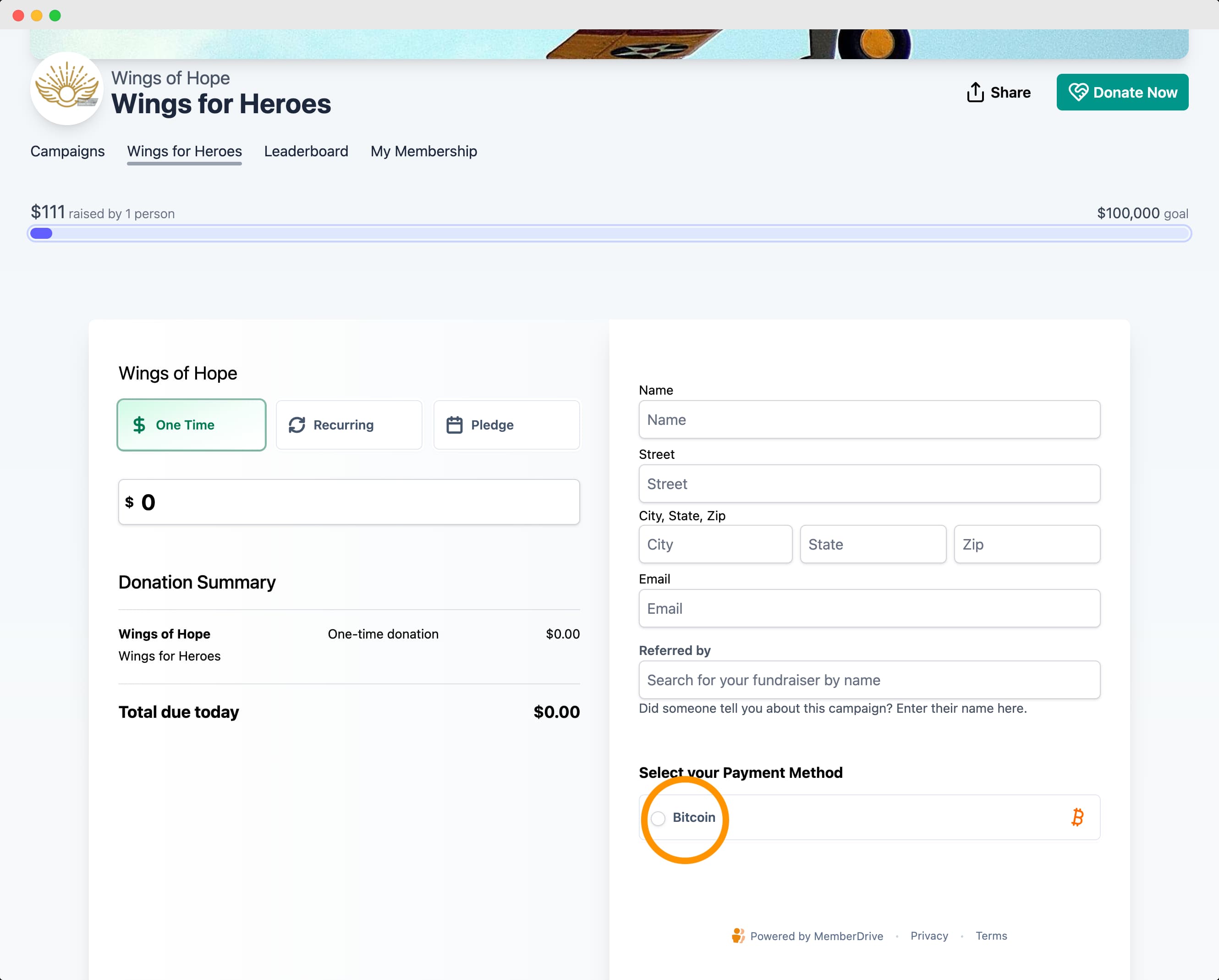
To test your Bitcoin donation, enter an amount (in Dollars) in the amount field, and then select Bitcoin
from the list of payment methods.
When Bitcoin is selected as the payment method, the recurring and pledge options will be disabled. This is because Bitcoin donations are one-time donations, and cannot be recurring or pledged.
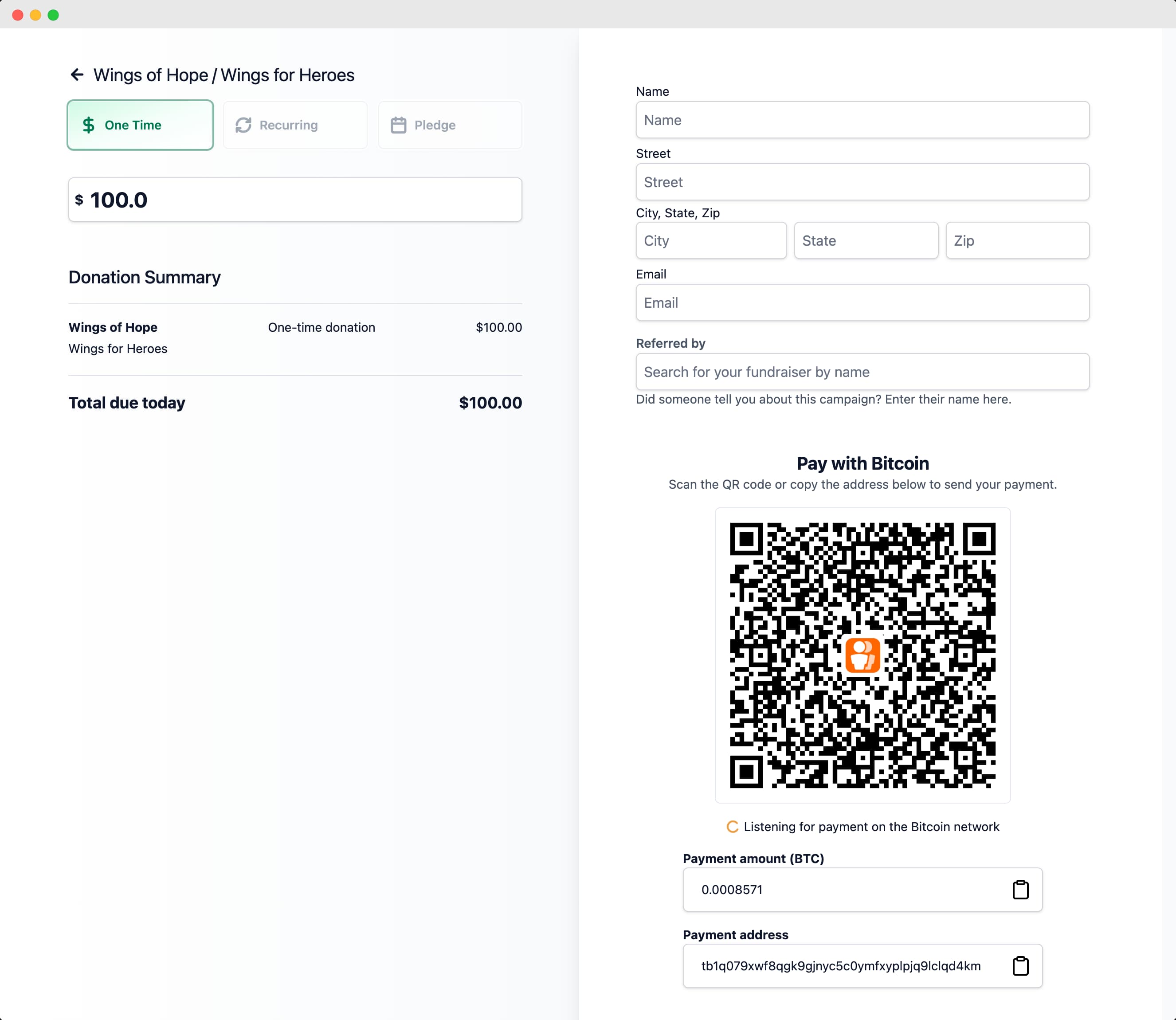
A QR code will be displayed. Scan it with your Bitcoin wallet to send the donation. You can also copy the address and paste it into your wallet manually, along with the BTC amount.
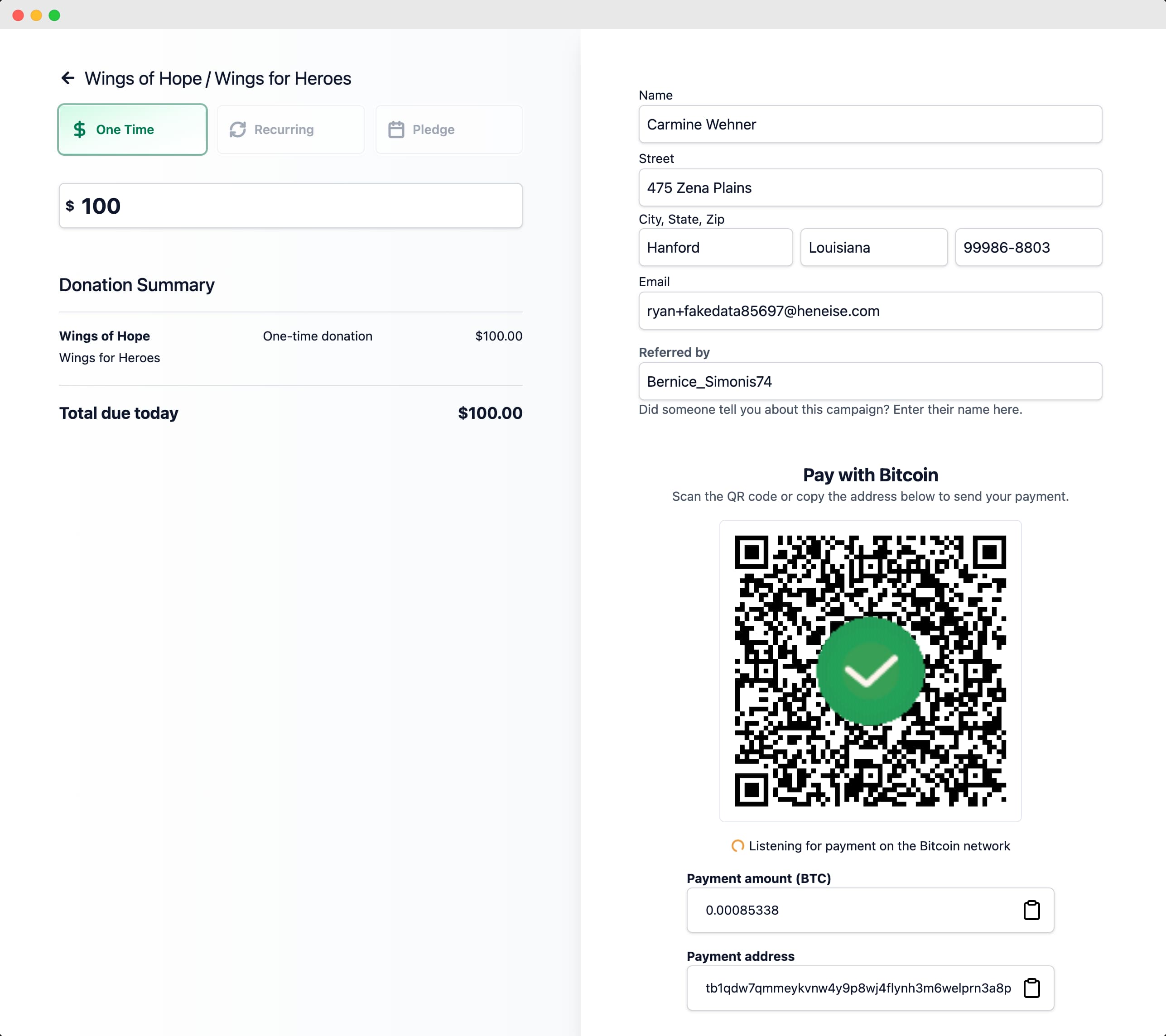
MemberDrive will scan the Bitcoin network for the payment and update the payment status when it is received. As soon as the payment is detected, a green checkmark will appear on the QR code, and the page will forward to the payment receipt.
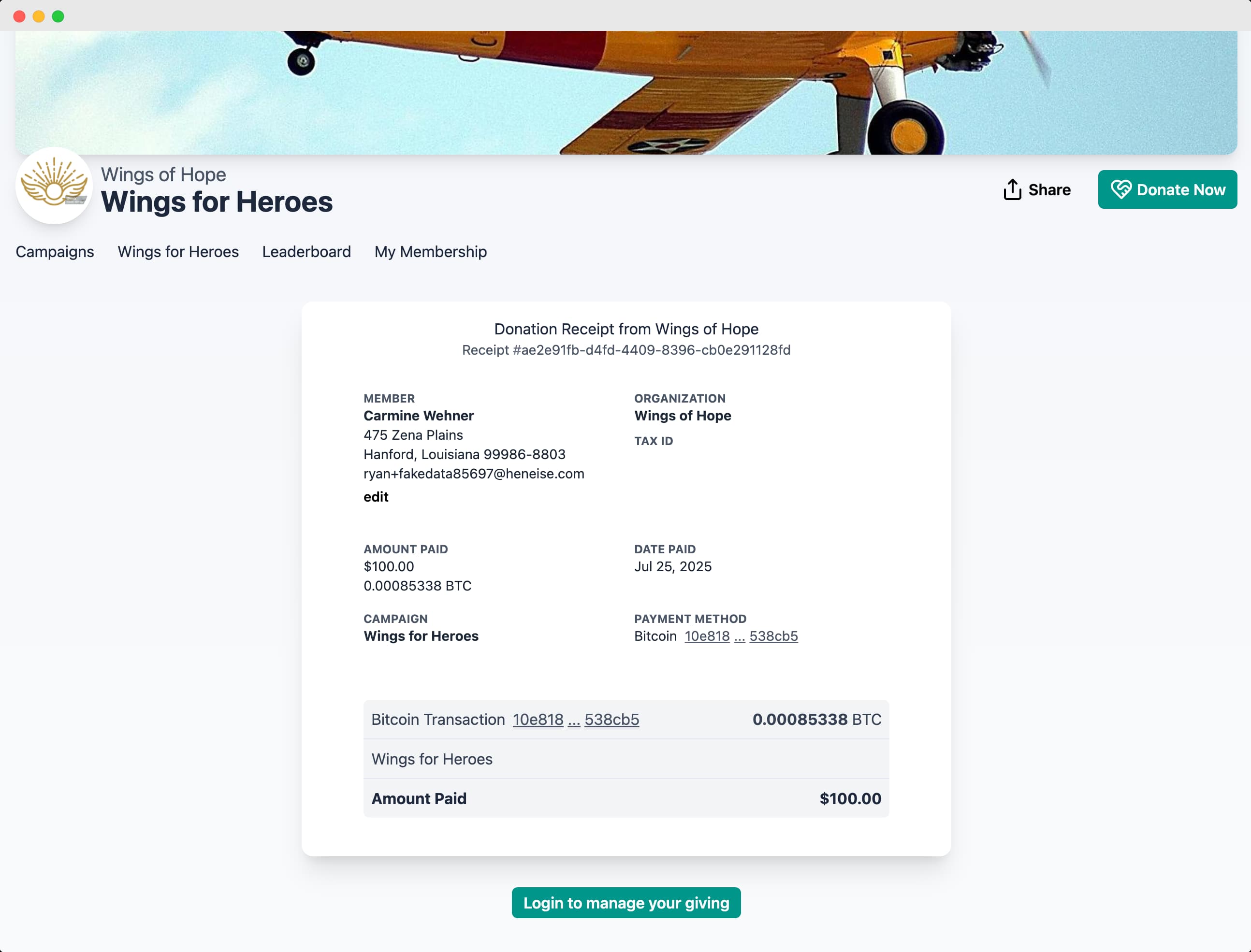
After the payment is received, your donors will be automatically redirected to the payment receipt. From here they can print the receipt for their records, or login to view this receipt in the future, view their payment history, or edit their donor information.
View the payment in the dashboard
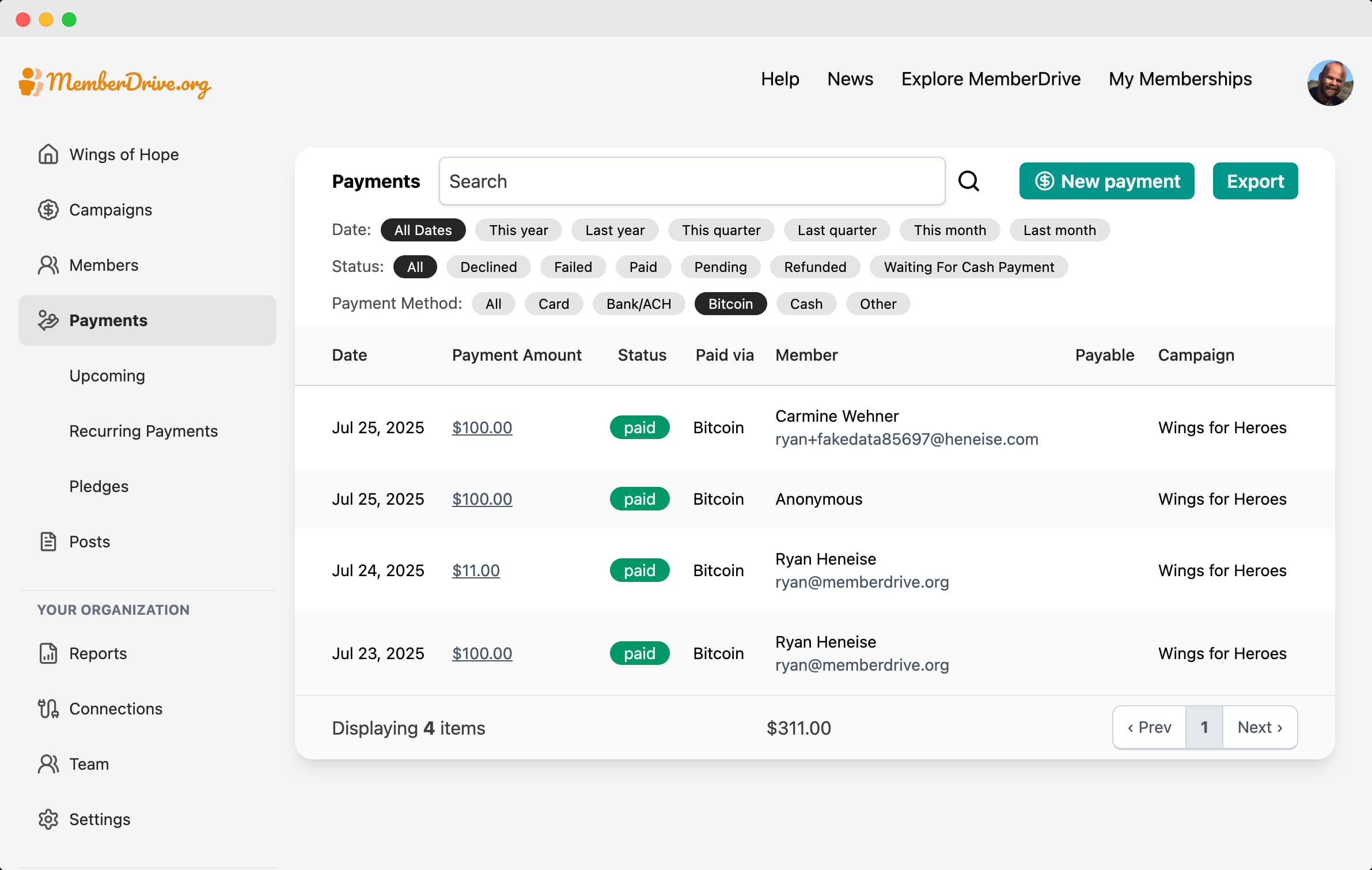
To view the payment in the dashboard, navigate to the Payments page in your MemberDrive Dashboard. Click on Payments, and then click Bitcoin
to filter the payments to only show Bitcoin payments.
Troubleshooting
If you are having trouble receiving Bitcoin donations, there are a few things you can check:
- Make sure you have entered your Xpub/Zpub correctly.
- Double-check your receive addresses in your wallet software to ensure they match.
- Navigate to mempool.space and search for the receive address to view transaction history for that address.
- Reach out to us for help.
Subscribe to receive our content right to your inbox.