Hosted Donation Form
Publish your campaign and share its MemberDrive URL so donors can give on a branded hosted page.
Hosted donation form
Every campaign has a public page on MemberDrive with your branding, story, goal progress, and a donation form. Share that URL in email, newsletters, and social posts — donors do not need an account to give.
For a full first-campaign walkthrough, start with Campaign Quick Start. To keep donors on your own website instead, see Embed your donation form.
Set up and share the page
Create or open the campaign
In the dashboard, click Campaigns, then open your campaign (or create one with New Campaign).
Brand the page
Open the campaign and go to Settings to set the header image, about text, goal, and suggested amounts. There you can also turn Cover processing fees by default on or off — when on, the donation form checks “Cover estimated fees” for donors, who can still uncheck it.
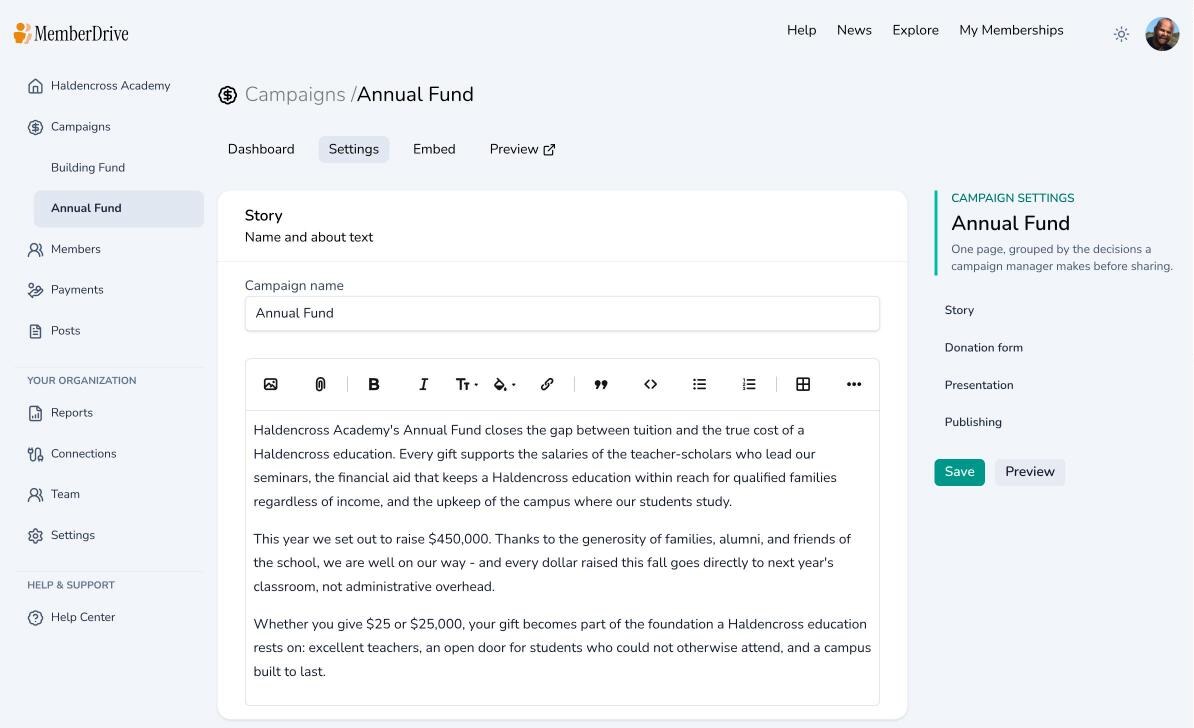
Connect payments and publish
Connect Stripe (and Bitcoin if you use it). On the campaign page checklist, Publish the campaign so it is visible to the public. Draft campaigns stay hidden.
Copy and share the link
On the campaign dashboard page, use Copy link under Share the campaign link, or open Preview after publishing. Send that URL to your audience.
What donors can do on the page
Depending on what you have enabled, donors can make a one-time Contribution, start a Membership (recurring gift), or make a Pledge, and pay by card, bank account, or other methods you support. See How to make a one-time donation for the donor-facing steps.
Subscribe to receive our content right to your inbox.