Posts
Share campaign updates with your supporters, optionally notify email subscribers, and control who can read each post.
Posts
Posts let you share news, progress updates, and thank-you messages with people who support your campaign. Each post belongs to a campaign, appears on that campaign’s public Posts page, and can be limited to members only.
Create and publish a post
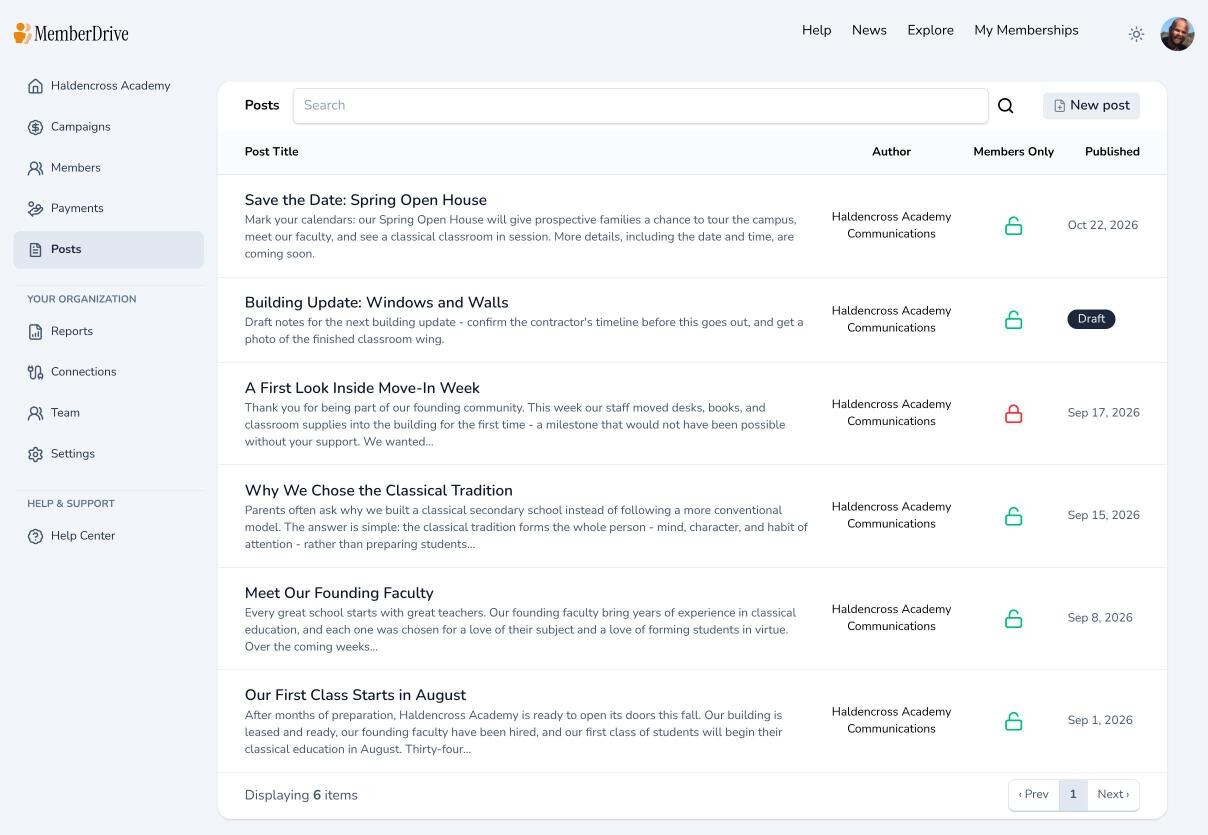
Open Posts
In your organization dashboard, click Posts in the left sidebar. Then click New post.
Write the post
Enter a title, choose the campaign, set the published date, and pick an author (a team member, or leave blank to show your organization team). Write the body in the rich text editor.
Click Review & Publish when you are ready to set visibility and status.
Choose who can see it and whether to email
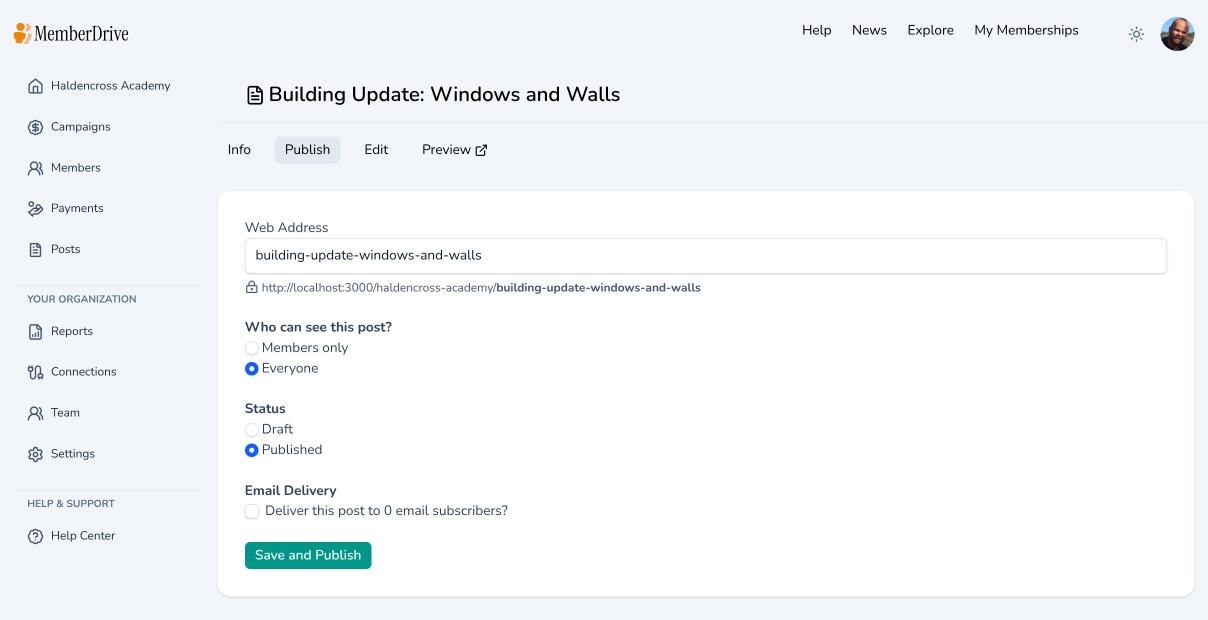
On the publish screen you can:
- Set a URL slug for the post
- Choose Members only or Everyone
- Mark the post as Draft or Published
- If you publish, optionally check Deliver this post to send it to confirmed email subscribers for that campaign (people who already received it will not get it again)
Click Save (or Save and Publish) to finish.
Where posts appear
Published posts that are not members-only appear on the campaign’s public Posts tab. Members-only posts are visible to signed-in members of that organization.
Supporters who subscribe to campaign email updates can receive a copy when you choose email delivery at publish time.
Tips
- Use posts for milestones, impact stories, and thank-yous — not for one-off payment receipts (those are sent separately).
- Keep drafts until the wording is ready; publishing is what makes the post public (and optionally emails subscribers).
- Manage your team authors under Team.
Subscribe to receive our content right to your inbox.