Embed Your Donation Form
Add a Donate button with popup or an iframe checkout to your own website from Campaign → Embed.
Embed your donation form
Use Embed when you want donors to give without leaving your website. Open any campaign in the dashboard, then open the Embed tab. You will see two options: Button and Iframe.
Prefer a simple shareable URL instead? Use the hosted donation form.
Option 1: Donate Now button (popup)
Open Campaign → Embed → Button
Go to Campaigns → your campaign → Embed. Stay on the Button tab.
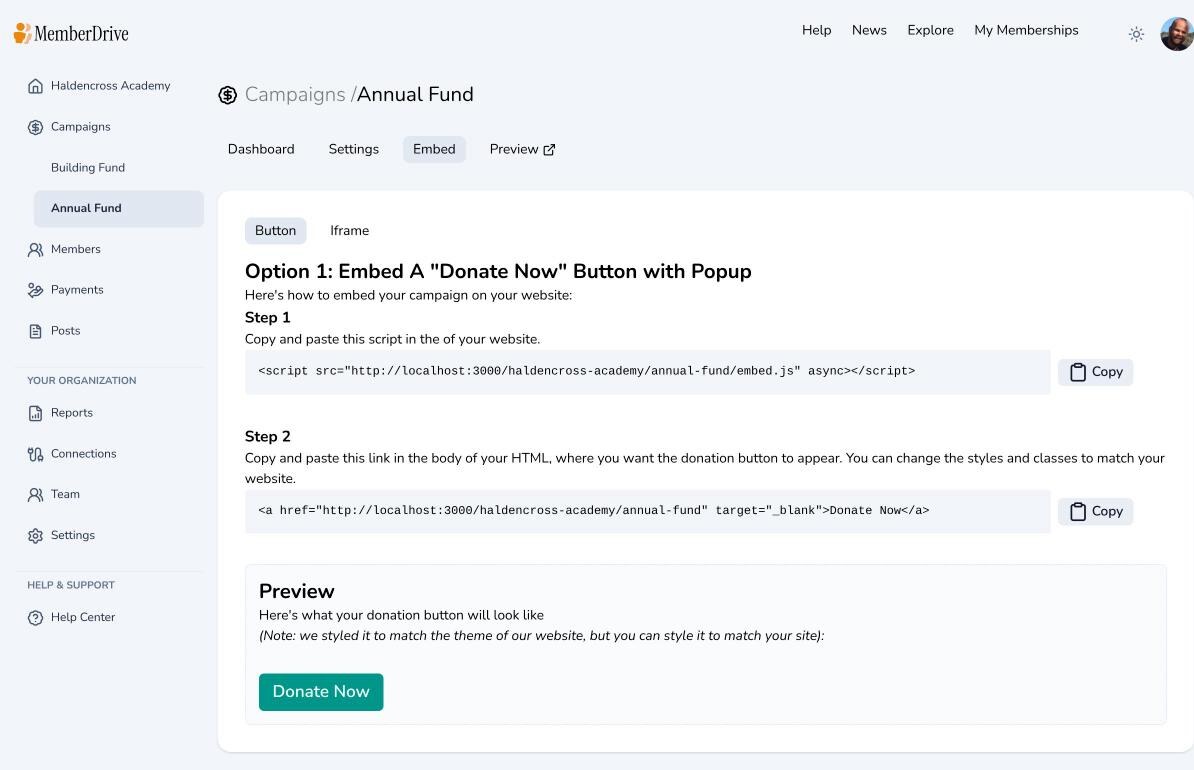
Paste the script in your site’s head
Copy the script from Step 1 and paste it into the <head> of your website.
Paste the donate link where the button should appear
Copy the link from Step 2 into the body of your HTML where you want the button. You can change classes and styles so it matches your site. The preview on the Embed page shows an example.
When a visitor clicks the button, the donation experience opens as a popup overlay powered by that script.
Option 2: Iframe donation form
Open Campaign → Embed → Iframe
On the same Embed page, click the Iframe tab.
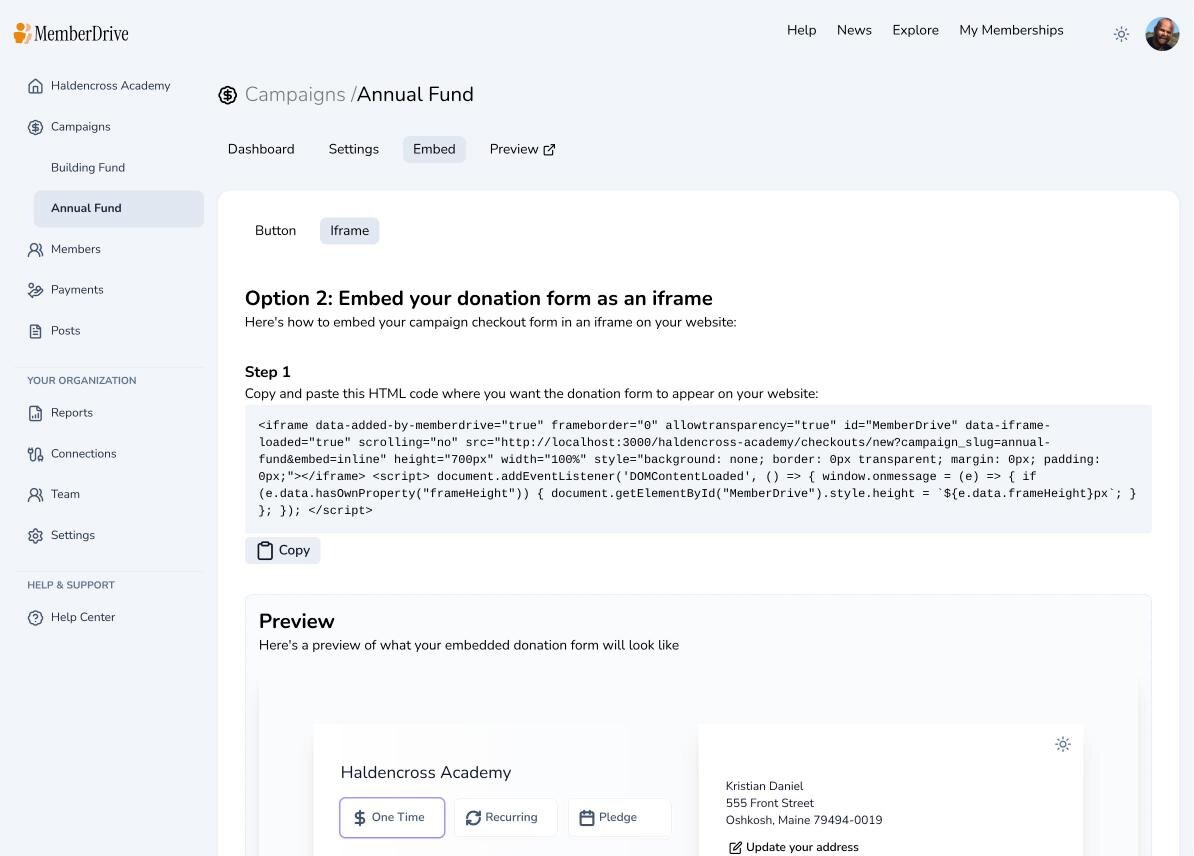
Paste the iframe HTML
Copy the HTML snippet and paste it where you want the form to appear. The page includes a live preview of the embedded checkout.
Use this when you want the full checkout form inline on a page rather than a button that opens a popup.
Tips
- Changes you make to the campaign (amounts, branding, publish state) apply to the embed automatically — you do not need to re-copy code for content updates.
- Publish the campaign before expecting the public embed to accept live gifts.
- Keep Stripe connected so card and bank payments work in the embed.
Subscribe to receive our content right to your inbox.