Record a Pledge Payment
Record an offline payment (check, cash, or other) against an existing pledge without creating a new pledge or a membership.
How to record a pledge payment
A pledge is a commitment to give a total amount over time. When a donor sends a check or pays offline toward that pledge, record the payment against the pledge so the balance, scheduled payments, and reports stay accurate.
This is different from:
- Creating a new pledge — use Pledges or Add pledge on the member
- Recording a one-time gift that is not tied to a pledge — use Record a manual donation
- Memberships (recurring gifts) — those continue until canceled; pledges stop when paid in full
Record a payment on an existing pledge
Find the pledge
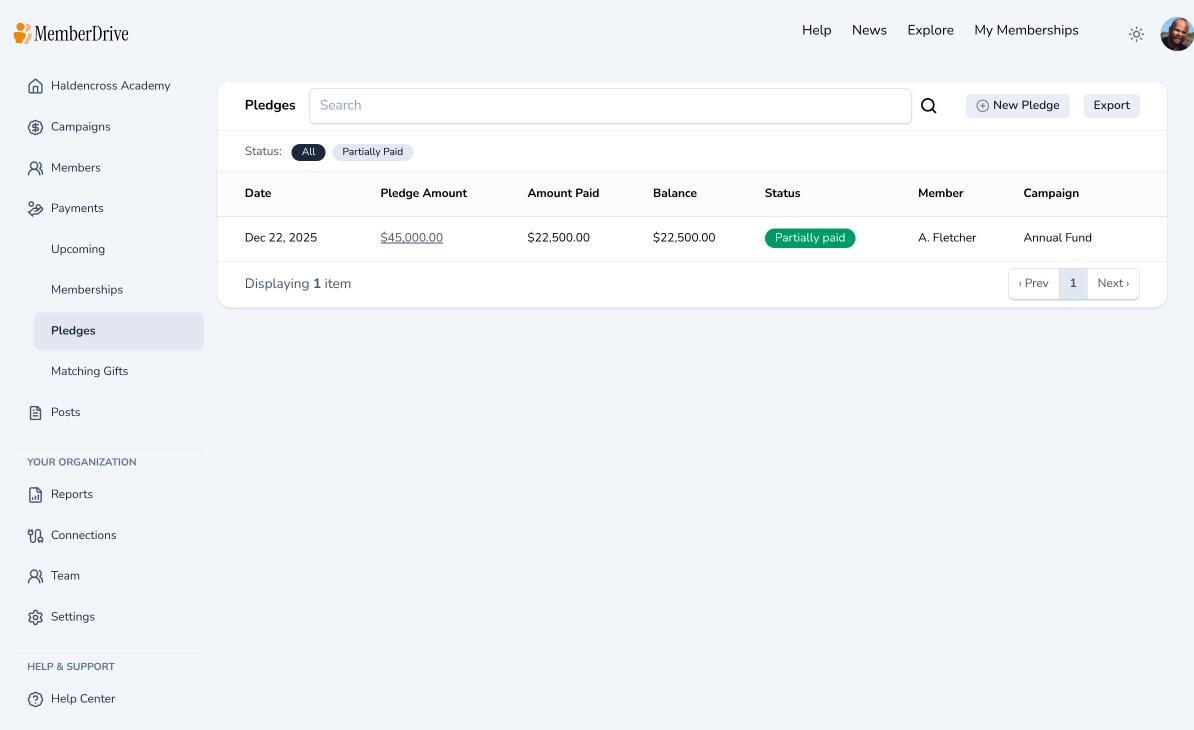
In the left sidebar, click Payments, then Pledges. Open the pledge you want to update.
You can also open the Member, go to their pledges, and open the pledge from there.
Click Receive Payment
On the pledge page, click Receive Payment. That opens the payment form already linked to this pledge.
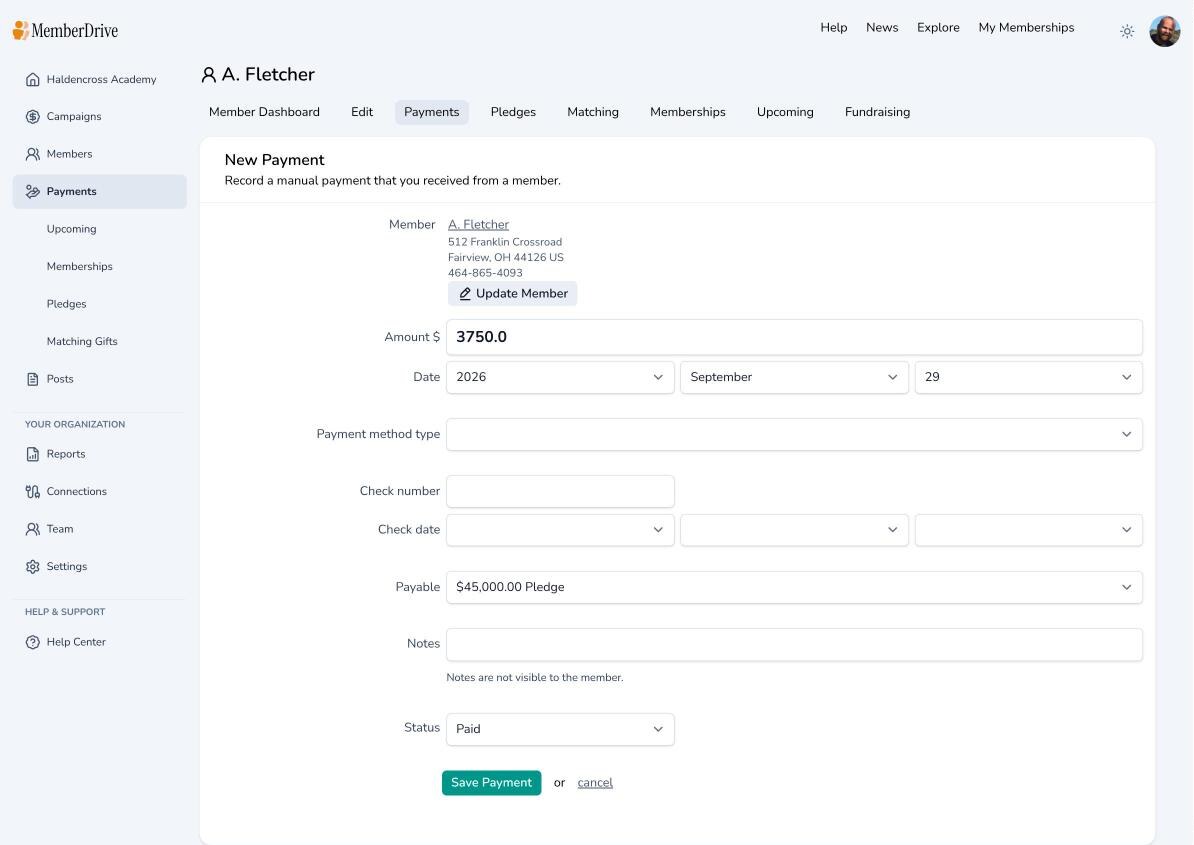
Enter the payment details
Fill in:
- Amount and date
- Payment method (for example check or cash)
- Check number and check date if applicable
- Optional notes (not visible to the member)
- Status — usually Paid for money you already have
Confirm the payment is associated with the pledge (the form is opened from the pledge, so it should already be linked). Click Save Payment.
Confirm the balance
Back on the pledge page, check Amount paid and Balance. The new payment also appears in the pledge’s Payments list. Scheduled installments update as the pledge is fulfilled.
Tips
- Do not create a separate one-time payment on the member unless you intend a gift that is not part of the pledge.
- Online pledge installments paid by card or bank account are collected automatically when the donor has a payment method on file; use Receive Payment for offline fulfillment.
- For the full pledge setup guide, see Pledges.
Subscribe to receive our content right to your inbox.